Mar 8, 2026

Prometheus NSSM Windows Exporter and Grafana

prometheus.exe --config.file=prometheus.yml

Access is denied.


https://wingetgui.com/apps/Prometheus-WMIExporter?utm_source=chatgpt.com


cd C:\Prometheus

prometheus.exe --config.file=prometheus.yml


http://localhost:9090


Download NSSM   

--Correct command

R:\nssm-2.24\win64\nssm.exe install prometheus


Path

C:\Prometheus\prometheus.exe


Startup Dir 

C:\Prometheus


Argument 

--config.file=prometheus.yml


R:\nssm-2.24\win64\nssm.exe install prometheus C:\Prometheus\prometheus.exe --config.file=C:\Prometheus\prometheus.yml


--Final Architecture

----------------------------------

Windows Server

      ↓

Windows Exporter (9182)

      ↓

Prometheus (9090)

      ↓

Grafana (3000)

      ↓

Monitoring Dashboard

----------------------------------


windows_exporter-0.24.0-amd64.msi


2️⃣ Select collectors (recommended)


Enable:

cpu

memory

logical_disk

net

os

service

system

Default port 9182


http://localhost:9182/metrics


Add to Prometheus

scrape_configs:

  - job_name: "windows"

    static_configs:

      - targets: ["192.168.1.10:9182"]


Test in Prometheus


Open Prometheus UI and run query:


windows_cpu_time_total   


If you are monitoring multiple Windows servers, install windows_exporter on each server.

Sep 28, 2025

Azure DTU

 In Azure SQL Database, DTU stands for Database Transaction Unit — it’s a performance metric that combines CPU, memory, reads, and writes into a single measure.


Think of it as a “power level” — the higher the DTU, the more workload the database can handle.


How to Check DTU Usage

You can monitor DTU utilization via:

Azure Portal → SQL Database → Monitoring → DTU usage (%)

Query via T-SQL

SELECT * FROM sys.dm_db_resource_stats ORDER BY end_time DESC;

You can estimate your DTU requirement using Microsoft’s DTU Calculator:

https://dtucalculator.azurewebsites.net


Jul 10, 2025

fn_my_permissions

 fn_my_permissions ( securable , 'securable_class' )

Value Description
DATABASE   Permissions on the current database
OBJECT Table, View, Stored Procedure, etc.
SCHEMA Database schema
SERVER Server-level permissions

SELECT * FROM fn_my_permissions(NULL, 'DATABASE');

SELECT * FROM fn_my_permissions(NULL, 'SERVER');

SELECT * FROM fn_my_permissions('dbo.YourTableName', 'OBJECT');

May 6, 2025

Monitoring SQL Server Deadlocks using Extended Events


Extended Events were first introduced in SQL Server 2008, and therefore you will not face any problem implementing them in our environment.

Extended Events is a lightweight performance monitoring feature that enables users to collect data to monitor and troubleshoot problems.

A deadlock is a situation where two or more processes or threads are blocked indefinitely, waiting for each other to release resources that they need to proceed.

Here we are going to observe how to gather deadlock information through Extended Events :

Creating SQL Server Extended Events to Capture Deadlocks using Management Studio

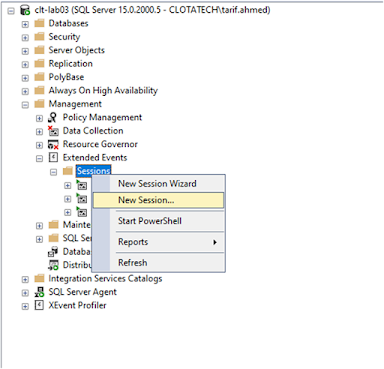
Step 1: First, open SQL Server Management Studio (SSMS) and navigate to Management > Extended Events > Sessions.


Step 2: Right-click on Sessions and select New Session.


Step 3: In the new window, provide a name for your event, we will call it SQLWATCH_deadlock in this caseSelect the event to start at the beginning of the server and when the session is created, you can change these settings if necessary.


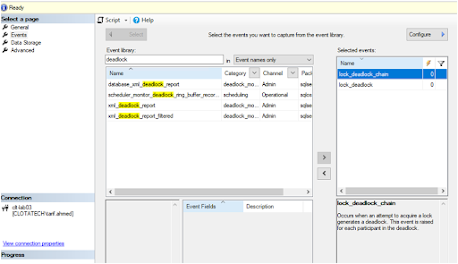
Step 4:  Go to the Events tab and in the event library textbox type “deadlock” to filter deadlock events:


Step 5: We will select 2 events: Lock_Deadlock (Raised when a request to acquire a lock is cancelled for the victim of a deadlock) and Lock_deadlock_chain (Raised when a request to acquire a lock results in a deadlock. This event is raised for all members of the deadlock).


Step 6: Having both the events chosen, click on the configure button, and a new window will be opened, in this window we will take a snapshot of the sql_text field so that we can view the query that generated the deadlock


Step 7: In the Data Storage tab, select where you want to store the Extended Event data use a file.


Step 8: After that, click on OK to save the Event configuration, we can see that the event is created and is already running.


Feb 5, 2025

The operating system returned error 59(An unexpected network error occurred.) to SQL Server during a read at offset 0x0000 in file.

Error Message

 Msg 823, Level 24, State 2, Procedure tables, Line 2 [Batch Start Line 2]

The operating system returned error 59(An unexpected network error occurred.) to SQL Server during a read 

at offset 0x00004675548000 in file '\\Server_Name\D2A_DB\MSSQL\Data\HISTORICAL_NDF_1.ndf'.

Additional messages in the SQL Server error log and operating system error log may provide more detail. 

This is a severe system-level error condition that threatens database integrity and must be corrected 

immediately. Complete a full database consistency check (DBCC CHECKDB). This error can be caused by many

factors; for more information, see SQL Server Books Online.

Cause

The Windows Session Timeout is 60 s by default. This timeout is dependent not only on Data Domain response time, 

but also any network latency. 

If there is a slow network or longer than expected Data Domain processing (such as rapid index expansion under 

a heavy backup load), Windows resets the connection causing backup errors.

PS C:\Windows\system32> get-SmbClientConfiguration

Resolution

Increase the Windows Session Timeout to a higher value such as 180 s by running the following command:

PS C:\Windows\system32> Set-SmbClientConfiguration -SessionTimeout 180 -Force

Aug 1, 2024

Mysql Replication

MySQL database servers (slave)-


I/O thread and SQL Thread-


Replication I/O threads- 

When a start slave statement is issued on a replica server, the replica creates an I/O thread, which connects to the source and asks it to send the updates recorded in its binary logs. The replication I/O thread reads the updates that the source's Binlog Dump thread sends and copies them to local files that comprise the replica's relay log.

The state of this thread is shown as Slave_IO_running in the output of show slave status.


Replication SQL threads-

The replica creates an SQL thread to read the relay log that is written by the replication I/O thread and execute the transactions contained in it.

There are three main threads for each source/replica connection. A source that has multiple replicas creates one binary log dump thread for each currently connected replica, and each replica has its own replication I/O and SQL threads.


Binary log dump thread-

The source creates a thread to send the binary log contents to a replica when the replica connects. This thread can be identified in the output of show process list on the source as the Binlog Dump thread.

The binary log dump thread acquires a lock on the source's binary log for reading each event that is to be sent to the replica. As soon as the event has been read, the lock is released, even before the event is sent to the replica.


Step 1-

Login to the database and check the global variable gtid.


Step 2-

To Check the server id and binary logfile.


Step 3-  

Open the MySQL configuration file and config.

Gtid_mode=ON

enforce_gtid_consistency=ON

server id=100

log-bin=gtidsource


Step 4 –

Restart MySQL service.


Step 5-

Now check global variable gtid, server_id and binary log.


Step 6-

Create a user in master.

Create user repl@’%’ identified by ‘Rainbow@123’


Step 7-

check global variable gtid in replica.


Step 8-

Check server_id and binary_log in replica.


Step 9-

Now check replica status.


Step 10-

Change Master to master user.


mysql> change master to  master_user='repl',master_password='Secure@321’, master_host='192.168.0.195',master_auto_position=1,get_master_public_key=1;

Query OK, 0 rows affected, 8 warnings (0.02 sec)


mysql> start replica;

Query OK, 0 rows affected (0.01 sec)


mysql> show replica status \G

*************************** 1. row ***************************

Replica_IO_State: Waiting for source to send event

Source_Host: 192.168.0.195

Source_User: repl

Source_Port: 3306

Connect_Retry: 60

Source_Log_File: gtidsource.000003

Read_Source_Log_Pos: 157

Relay_Log_File: clota-dbl06-relay-bin.000002

Relay_Log_Pos: 375

Relay_Source_Log_File: gtidsource.000003

Replica_IO_Running: Yes

Replica_SQL_Running: Yes

Replicate_Do_DB:

Replicate_Ignore_DB:

Replicate_Do_Table:

Replicate_Ignore_Table:

Replicate_Wild_Do_Table:

Replicate_Wild_Ignore_Table:

Last_Errno: 0

Last_Error:

Skip_Counter: 0

Exec_Source_Log_Pos: 157

Relay_Log_Space: 591

Until_Condition: None

Until_Log_File:

Until_Log_Pos: 0

Source_SSL_Allowed: No

Source_SSL_CA_File:

Source_SSL_CA_Path:

Source_SSL_Cert:

Source_SSL_Cipher:

Source_SSL_Key:

Seconds_Behind_Source: 0

Source_SSL_Verify_Server_Cert: No

Last_IO_Errno: 0

Last_IO_Error:

Last_SQL_Errno: 0

Last_SQL_Error:

Replicate_Ignore_Server_Ids:

Source_Server_Id: 100

Source_UUID: 25474780-4a56-11ef-b77c-000c2926dc41

Source_Info_File: mysql.slave_master_info

SQL_Delay: 0

SQL_Remaining_Delay: NULL

Replica_SQL_Running_State: Replica has read all relay log; waiting for more updates

Source_Retry_Count: 86400

Source_Bind:

Last_IO_Error_Timestamp:

Last_SQL_Error_Timestamp:

Source_SSL_Crl:

Source_SSL_Crlpath:

Retrieved_Gtid_Set:

Executed_Gtid_Set: 89ffa9fd-4a4c-11ef-8d4a-000c2995d827:1-4

Auto_Position: 1

Replicate_Rewrite_DB:

Channel_Name:

Source_TLS_Version:

Source_public_key_path:

Get_Source_public_key: 1

Network_Namespace:

1 row in set (0.00 sec)


Step 11-

After enabaling gtid.


Step 12-

Create a database and check the global variable gtid.


Step 13-

Check server_uuid.


Step 14-

Change database and check global variable gtid in replica.


Step 15-

 In replica use f1 database and check the table.


Jul 29, 2024

Install MySQL 8 on Oracle Linux

Installing MySQL on Oracle Linux is simple and straightforward. Download the latest version of MySQL based on your OS version.

Download via Command Line (optional):

Use wget or curl to download the file directly if you prefer using the command line

wget https://downloads.mysql.com/archives/get/p/23/file/mysql-8.0.30-linux-glibc2.12-x86_64.tar.xz


Change to the directory where you downloaded the tarfile:

cd  /test

Extract the tarfile using tar:

tar -xvf mysql-8.0.30-linux-glibc2.12-x86_64.tar.xz


Now Please install all the package Step by Step :

Step 1 :Install mysql-commercial-common

yum install mysql-commercial-common-8.0.32-1.1.el9.x86_64.rpm

Step 2 :Install mysql-commercial-client-plugins

yum install mysql-commercial-client-plugins-8.0.32-1.1.el9.x86_64.rpm

Step 3 :Install mysql-commercial-libs

yum install mysql-commercial-libs-8.0.32-1.1.el9.x86_64.rpm

Step 4 :Install mysql-commercial-client

yum install mysql-commercial-client-8.0.32-1.1.el9.x86_64.rpm

Step 5 :Install mysql-commercial datafile

yum install mysql-commercial-icu-data-files-8.0.32-1.1.el9.x86_64.rpm

Step 6 :Install MySQL server:

yum install mysql-commercial-server-8.0.32-1.1.el9.x86_64.rpm


Start and enable the MySQL service:

 systemctl start MySQL

 systemctl enable MySQL

Run the Mysql_secure_installation script to secure your installation:

mysql_secure_installation

Check MySQL Status verify that MySQL is running:

systemctl status MySqld


Access MySQL connect to MySQL using the root account:

mysql -u root –p

Check the temporary password for MySQL:

grep 'temporary password' /var/log/mysqld.log

/usr/bin/mysql_secure_installation

Securing the MySQL server deployment:

Enter password for user root: <enter temp password>

The existing password for the user account root has expired. Please set a new password.

New password: <give new password>

Re-enter new password: <re-enter new password>

Connect to MySQL and check the databases:

mysql  -u root  -p

password ******


mysql> show databases;


Jul 28, 2024

Network actual bandwidth between servers.

Iperf:

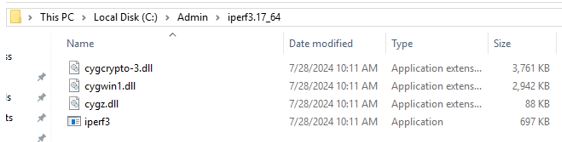
Download the tool from https://iperf.fr/iperf-download.php

Keep it on both source and target server.


  • On one server (server), run:

Copy code

iperf3 -s


  • On server (server2){Cline machine}, run:

Copy code

iperf3 -c server1_IP


Note: make sure to open port 5201 on the server.

Apr 8, 2024

Cloning In Oracle

In the context of Oracle databases, "cloning" typically refers to the process of creating an exact replica of a database, usually for purposes such as testing, development, or disaster recovery. There are several methods for cloning an Oracle database, each with its own advantages and use cases. Here's an overview of some common cloning methods in Oracle:

 RMAN (Recovery Manager) Cloning: RMAN is a powerful Oracle utility for backup and recovery operations. With RMAN, you can create a clone of a database by taking a backup of the source database and then restoring it to a different location. RMAN also provides options for efficiently copying data files and performing point-in-time recovery if needed.


RMAN Client: The RMAN client is the interface through which database administrators interact with RMAN to perform backup, recovery, and cloning tasks. Administrators use RMAN commands and scripts to initiate and manage database operations.


Control File: The control file is a critical component of the Oracle database that stores metadata about the database structure, including data file locations, redo log file information, and backup details. RMAN interacts with the control file to obtain information necessary for backup and recovery operations.


RMAN Repository: RMAN maintains a repository that stores metadata and configuration information related to backup and recovery operations. The repository can be stored in either the control file, a recovery catalog (a separate database schema created specifically for RMAN metadata), or both.


Channel: RMAN channels are mechanisms for communicating between the RMAN client and the database server during backup and recovery operations. Channels can be allocated for different tasks, such as reading data files, writing backup sets, or performing parallel operations.


Media Management Software: RMAN relies on media management software to perform backup and restore operations to physical storage devices, such as tape drives, disk arrays, or cloud storage. Media management software provides the interface between RMAN and the storage devices, handling tasks such as data transfer, compression, and encryption.


Data Files: Data files are the primary storage components of an Oracle database, containing user data, indexes, and other database objects. RMAN interacts with data files to back them up, restore them, and create copies during cloning or recovery operations.


Redo Logs: Redo logs are files that record changes made to the database, enabling recovery of transactions in the event of a failure. RMAN uses redo logs during recovery operations to apply changes and bring the database to a consistent state.


Backup Sets and Image Copies: RMAN can create backups in the form of backup sets (collections of data blocks) or image copies (exact duplicates of data files). These backups are stored in the configured backup destination, such as disk or tape.


Recovery Catalog (Optional): In addition to the control file repository, RMAN can use a recovery catalog database to store metadata and configuration information. The recovery catalog provides additional flexibility and management capabilities, especially in environments with multiple databases.


Data Pump Export/Import: Oracle Data Pump is another utility that allows you to export and import database objects and data. You can use Data Pump to export the schema(s) or the entire database from the source environment and then import it into the target environment. This method is suitable for smaller databases or when you need to clone specific schemas.


Export Process:

1. When you run expdp, it connects to the source database and reads metadata about the objects to be exported.

2. It then creates one or more dump files containing the exported data and metadata.

3. These dump files are stored in the specified directory.

expdp username/password@database_name schemas=schema_name directory=dir_name dumpfile=export.dmp


Data Pump Import (impdp):

Importing Data:


Data Pump Import (impdp) is used to import data and metadata into Oracle databases.

It reads the dump files created by expdp and loads the data and metadata into the target database.

Similar to expdp, you can import entire databases, specific schemas, tablespaces, or individual tables.

Import Process:


When you run impdp, it connects to the target database and reads the dump files created by expdp.

It then loads the data and metadata into the target database based on the specified parameters.

You can control various aspects of the import process such as parallelism, data transformation, error handling, etc.


impdp username/password@database_name directory=dir_name dumpfile=export.dmp schemas=schema_name


Cold Backup: This method involves shutting down the source database, copying its data files to the target location, and then starting up the database in the target environment. While this approach is straightforward, it requires downtime for the source database during the cloning process.


Oracle Database Cold Backup:

Oracle Cold Database backup is rarely used these days. DBAs hardly take cold database backup but sometimes it is important to take one before decommissioning a database.

• Key points

• Take Cold Backup


Key Points

• Backup is a copy of original data which will be used to recover databases

• If the data is reproducible and backup not existing, still we can recover the data. But it is a tedious and time consuming task

• Taking backup after shutting down the database is called cold backup and because no transactions exist, the backup will be consistent

• In real time, we will perform cold backup very rarely


Take Cold Backup

SQL> select name from v$datafile;

SQL> select member from v$logfile;

SQL> select name from v$controlfile;

SQL> shutdown immediate


[oracle@server1 ~]$ mkdir /u03/coldbkp

[oracle@server1 ~]$ cp /datafiles/prod/*.dbf /u03/coldbkp

[oracle@server1 ~]$ cp /datafiles/prod/*.log /u03/coldbkp

[oracle@server1 ~]$ cp /datafiles/prod/*.ctl /u03/coldbkp

[oracle@server1 ~]$ cp $ORACLE_HOME/dbs/*.ora /u03/coldbkp

[oracle@server1 ~]$ sqlplus "/ as sysdba"


SQL> startup

SQL> alter database backup controlfile to trace;

Archives are not required to be copied with cold backup.


Oracle GoldenGate: Oracle GoldenGate is a data replication and integration tool that enables real-time data movement between heterogeneous systems. It can be used for database cloning by continuously capturing changes from the source database and applying them to the target database, keeping the two databases in sync.


Real-time Data Integration: GoldenGate captures changes made to data in source systems and delivers them in real-time to target systems, ensuring that the data is synchronized across multiple databases and platforms.


High Availability and Disaster Recovery: GoldenGate provides solutions for high availability and disaster recovery by replicating data in real-time from primary systems to standby systems, allowing for rapid failover and minimal data loss in case of system failures.


Data Warehousing and Reporting: GoldenGate facilitates data replication and consolidation for data warehousing and reporting purposes, enabling organizations to analyze data from multiple sources in real-time.


Data Migration and Upgrades: GoldenGate can be used to migrate data between different database platforms or versions with minimal downtime, allowing organizations to upgrade their systems or move data to new environments seamlessly.


Business Intelligence and Analytics: GoldenGate enables real-time data feeds for business intelligence and analytics applications, providing up-to-date information for decision-making processes.


Here are some key features and components of Oracle GoldenGate:


Extract Process: The Extract process captures data changes (inserts, updates, deletes) from the source database's transaction logs (redo logs or archive logs) in real-time.


Data Pump Process: The Data Pump process collects captured data from the Extract process and writes it to trail files.


Replicat Process: The Replicat process reads data from trail files and applies it to the target database, ensuring that changes are replicated accurately and efficiently.


Manager Process: The Manager process is responsible for managing GoldenGate processes, monitoring their status, and handling administrative tasks.


Trail Files: Trail files are used to store captured data changes in a platform-independent format, allowing for easy transfer and replication of data between different systems.


Checkpointing: GoldenGate uses checkpoints to track the progress of data replication, ensuring that transactions are replicated in the correct order and consistency is maintained between source and target systems.


Oracle Database Cloning Tools: Oracle offers additional tools such as Oracle Database Cloning Assistant for Standalone Database, Oracle Enterprise Manager (EM) Clone Database, and Oracle Cloud Control Database Clone feature. These tools provide user-friendly interfaces and automation capabilities for cloning databases.

Oracle provides several tools and methods for cloning databases, each suited for different scenarios and requirements. Here are some commonly used Oracle database cloning tools:


RMAN (Recovery Manager):


RMAN can be used for creating clones of databases using the DUPLICATE command.

It allows for point-in-time cloning, enabling you to create a clone of the database at a specific moment.

RMAN cloning can be disk-based or tape-based, depending on the backup destination.

RMAN provides flexibility in terms of customization and automation during the cloning process.


Oracle Enterprise Manager (OEM):


Oracle Enterprise Manager provides a graphical user interface for managing Oracle databases, including cloning operations.

OEM allows for easy and intuitive cloning of databases with minimal manual intervention.

It provides features for scheduling and monitoring cloning jobs, as well as managing post-cloning tasks.

Data Pump Export/Import:


Oracle Data Pump is a utility for exporting and importing database objects and data.

It can be used for cloning by exporting data from the source database and importing it into a new database instance.

Data Pump export/import is suitable for smaller databases or when specific customization is required during the cloning process.

Manual Cloning (Cold Cloning):


Manual cloning involves manually copying database files (data files, control files, redo logs, etc.) from the source database to the target location.

This method is typically used for non-production environments or when other cloning methods are not feasible.

Manual cloning requires downtime for the source database during the copy process and may not be suitable for large databases.

Snap Clone:


Oracle Snap Clone is a feature available with Oracle Enterprise Manager and Oracle Database 12c and later versions.

It enables rapid provisioning of database clones using storage snapshots.

Snap Clone leverages storage technologies to create space-efficient copies of databases, minimizing storage requirements and improving cloning speed.


Snapshot Cloning: Some storage solutions offer snapshot-based cloning, where a point-in-time snapshot of the source database's storage is taken, and clones are created from that snapshot. This method can be very fast and efficient but requires compatible storage infrastructure.

When choosing a cloning method, consider factors such as database size, downtime requirements, data consistency, and available resources. It's also essential to carefully plan and test the cloning process to ensure the integrity of the cloned database and minimize any potential disruptions to production environments.